







We recommend that you always keep your WordPress version up to date. By using the latest version of WordPress, you protect your website against verious security risks. To update WordPress, log into the WordPress Dashboard via 'yourdomain.com/wp-admin'.
Before updating WordPress
Please note that it is wise to have a backup of your website on hand before installing a WordPress update. If you use WordPress on our web hosting packages, you can use our 'Automatic backups' free of charge.
If you prefer to store a backup of the website locally, follow the tutorials on how you can manually create a backup of your database and website files.
Updating WordPress
If you use WordPress plugins or WordPress templates, you should also update them before updating WordPress. You can do this via the WordPress dashboard: 'Dashboard > Updates', which indicates which plugins or themes need to be updated.
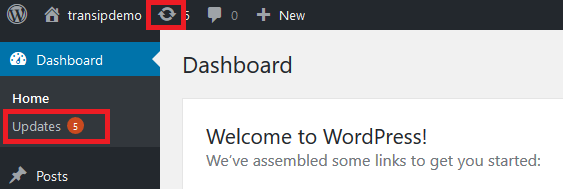
If a general update of WordPress is available, you can also easily install it from the WordPress dashboard. To do this, go to the 'Dashboard > Updates' tab again. This will take you to the 'WordPress Updates' screen.
Here you can click the 'Update Now' button. The latest version of WordPress will then be installed automatically. From version 3.7 and up, security updates are automatically implemented in WordPress.
It is also possible to update WordPress manually. You can read how to do this in the following article: 'How to update WordPress manually'.