







MCP (Model Context Protocol) lets you connect an AI assistant to external tools. In cPanel the Meridian theme provides a connection to the WebPros MCP server. You can use this to have an AI assistant help you deploy websites and manage your hosting account. For example, if your website or part of your server is not working, you can use an AI assistant to investigate and resolve the problem.
In this guide, you first set up Meridian through WHM. You then link your cPanel account and configure Claude Code as an example of an MCP client.
The MCP server is configured for a cPanel user account. You use WHM to manage the theme and the available features. You then obtain the MCP configuration from cPanel; you do not enter your WHM root password into your AI assistant.
What do you need?
- A VPS with cPanel and WHM with Meridian available (from cPanel & WHM version 138 onwards).
- Access to WHM to manage packages and account settings, or help from your server administrator.
- A cPanel account that uses the Meridian theme.
- A WebPros account and an installed MCP client. We use Claude Code below.
Setting up Meridian in WHM
One way to set the theme for cPanel users is through a WHM package. A package contains the settings you assign to one or more cPanel accounts. For more background, see our ‘cPanel tutorial series’.
Editing an existing package
Step 1
Log in to WHM at https://your-server-name:2087. Replace your-server-name with the hostname of your own server.
Step 2
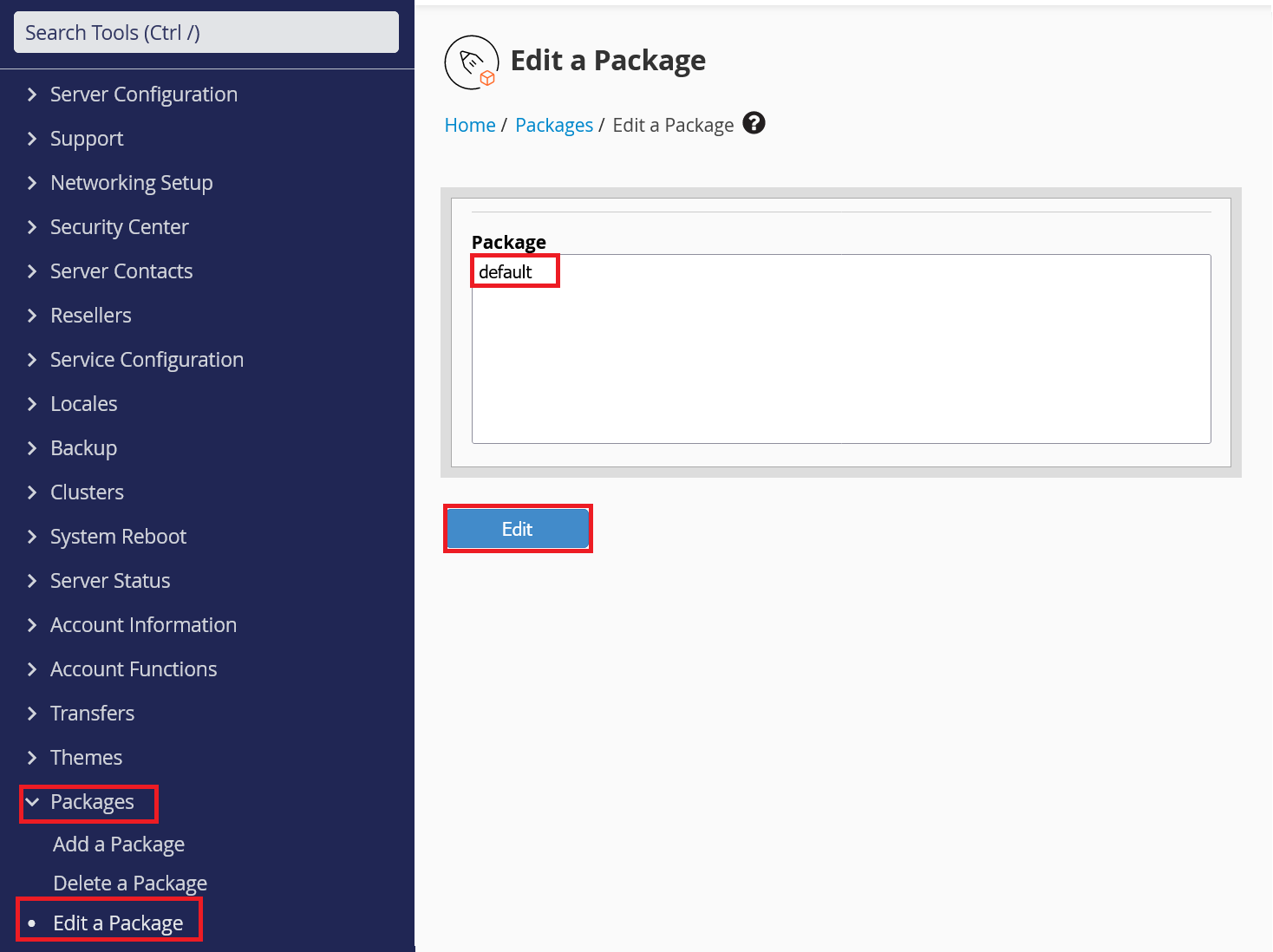
Go to ‘Packages’ > ‘Edit a Package’. Select the desired package and click ‘Edit’.
Step 3
Select ‘Meridian’ under ‘Settings’ for ‘cPanel Theme’. Check the other package settings and click ‘Save Changes’.
Please note: these changes apply to all users of the relevant package.

Creating a new package
In WHM, go to ‘Packages’ > ‘Add a Package’. Give the package a name and set the desired limits. Under ‘Settings’, for ‘cPanel Theme’, select ‘Meridian’ and click ‘Add’. Use this package when creating a cPanel account.

Checking the theme of an existing account
For existing accounts, also check the theme set for the account itself. In WHM, go to ‘Account Functions’ > ‘Modify an Account’. Select the desired account and click ‘Modify’. For ‘cPanel Theme’, select ‘Meridian’ and click ‘Save’.

Making the MCP feature available
In WHM, go to ‘Packages’ > ‘Feature Manager’ and check that ‘MCP Connection’ is enabled in the account's feature list (by default, this is the ‘default’ package, and MCP Connection is enabled by default). You can see which feature list the package uses under ‘Feature List’ when editing the package.
This feature determines whether the user has access to the ‘Connections’ tab, which contains the MCP connection. Log in to cPanel again after making changes.
Step 1
In WHM, open ‘Feature Manager’ (under ‘Packages’) and select the ‘default’ feature list. Do you use a different feature list? Select the feature list you use for your packages instead.

Step 2
Make sure ‘MCP Connection’ (Meridian required) is checked, then click ‘Save’ at the bottom left.

Linking your WebPros account
Step 1
Log in to cPanel at https://your-server-name:2083. Click your avatar in the top-right corner and select ‘Profile’ to open your ‘Account Preferences’.
Open the ‘Connections’ tab and click ‘Link WebPros Account’.

Step 2
Sign in with your WebPros account. Don't have an account yet? Create one first, or sign in with a Google account.

A confirmation prompt appears. Check that your server's address is correct, then click the link to grant permission.

You are now returned to the ‘Connections’ tab in Account Preferences. Continue with the next section to connect Claude Code.
Connecting Claude Code
Step 1
In the MCP connection section, download the mcp.json file, or copy the connection configuration shown.

Step 2
Open the mcp.json file and copy its contents. The contents look something like this:
{
  "mcpServers": {
    "webpros-mcp": {
      "type": "http",
      "url": "https://mcp.webpros.com/api/mcp",
      "oauth": {
        "clientId": "Hf3QmY1234567890123989nLq1Zo",
        "callbackPort": 64474
      }
    }
  }
}
On the computer where you use Claude Code, open the ~/.claude.json file. Add webpros-mcp under mcpServers in ~/.claude.json. With some other existing MCP servers, the result might look like this:
{
  "mcpServers": {
    "filesystem": {
      "command": "npx",
      "args": [
        "-y",
        "@modelcontextprotocol/server-filesystem",
        "/path/to/allowed/files"
      ]
    },
    "shared-api": {
      "type": "http",
      "url": "https://mcp.example.com/mcp"
    },
    "webpros-mcp": {
      "type": "http",
      "url": "https://mcp.webpros.com/api/mcp",
      "oauth": {
        "clientId": "Hf3QmY1234567890123989nLq1Zo",
        "callbackPort": 64474
      }
    }
  }
}
Do you use a shared project configuration? Place the configuration in .mcp.json in your project's root directory. Keep any existing server entries and check that the file contains valid JSON.
Step 3
Restart Claude Code, run the /mcp command and choose the option to authenticate the connection.
Finally, check the connection status in the MCP overview. Start with a simple prompt, for example: ‘Provide an overview of available cPanel tools. Make no configuration changes.’ This lets you first see which tools are available to Claude Code.
Disconnecting MCP
In cPanel, return to the MCP connection (cPanel > Profile > Connections) and click ‘Unlink WebPros Account’. This unlinks WebPros from your cPanel account. To use the connection again later, you will need to link WebPros again.

Meridian is not listed as an available theme. What should I do?
Ask your server administrator to check whether Meridian is available on the server. You can only select a theme that is present on the server. Meridian is available from cPanel & WHM version 138 onwards.
Why can't I see an MCP connection?
Check that the account is actually using Meridian and has the correct feature list assigned. Then check in WHM whether the MCP feature is available for that feature list.
Claude Code does not show the MCP server.
Check that you have placed the configuration in the correct file and that mcpServers contains valid JSON (tip: you can ask Claude Code to troubleshoot this). Restart the client after making a change, then check the MCP overview again.
Looking for more information? You can find more details in the official cPanel documentation on connecting to MCP, Account Preferences, editing existing packages, adding new packages and modifying an existing account.